Manual · Chapter 10
Text, titles and captions
Titles and their styles and animations, emphasis on words, captions from speech or a file, caption styles, and captions spoken by an AI voice.
Titles
Open Text on the left. Each tile is a text style: a typeface, a colour, an outline or a box, a shadow or a glow.
- With no title selected, click a style to put a title in it at the playhead, or drag a style onto the timeline where you want it.
- Click a style with a title selected to restyle it.
- Type the words under Text in the inspector's Video tab, or double-click the title in the viewer and type there. Escape ends typing.
- Move, scale and turn the title in the viewer like any picture. Safe areas shows where a phone app's buttons would cover it.
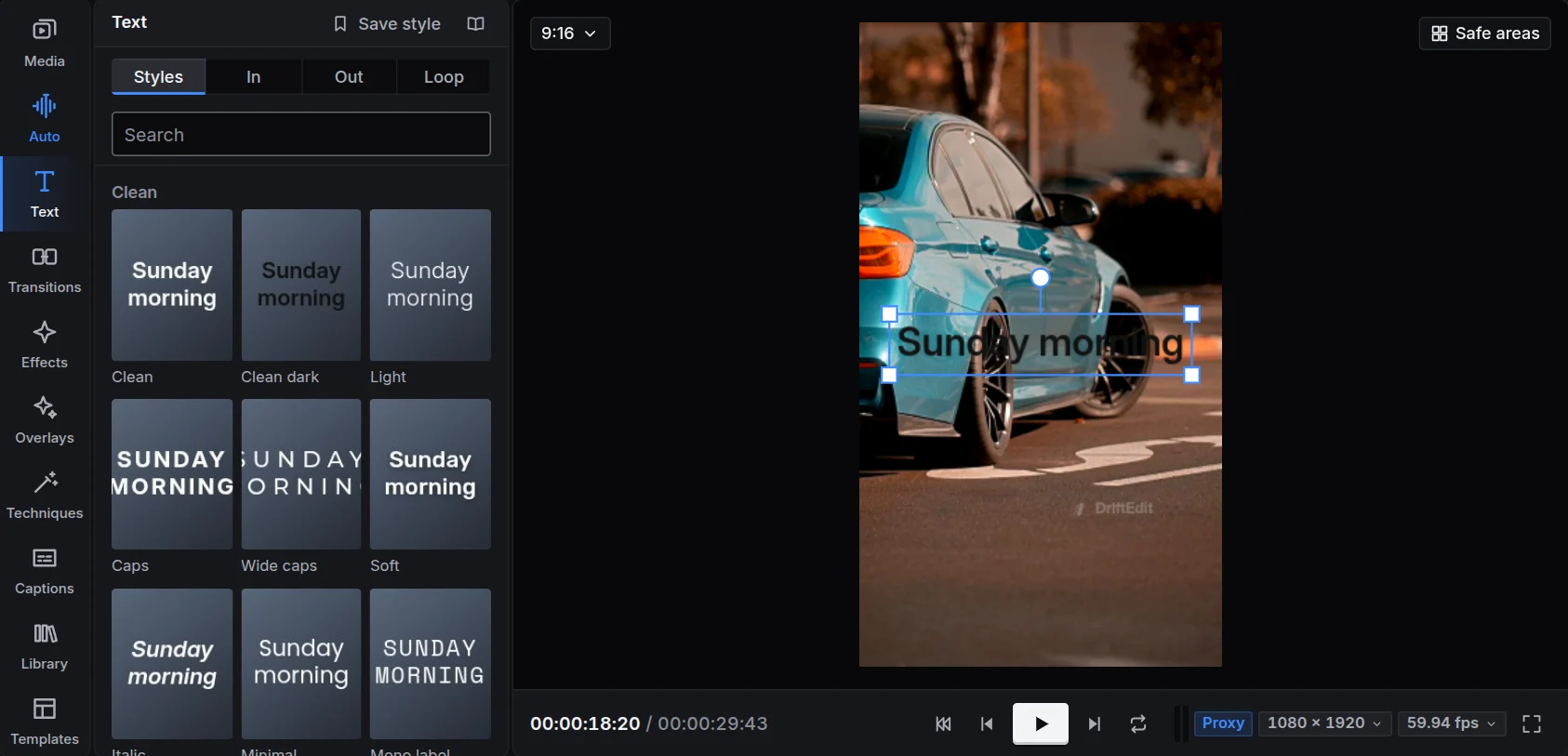
Its look
Under Text in the inspector's Video tab is every part of the look: the typeface and size, the colour, the outline, the shadow and glow, the box behind the words, the spacing and the alignment. Select several titles to change them together. A look you like can be saved as a style of your own, under Yours.
Animations
Under In, Out and Loop, choose how a title arrives, leaves, and moves while it is on screen: by letter, by word or by line, typed, bounced, faded, slid, popped and many more. The length of each is set in the inspector.
Emphasis
Pick a word of the title in the inspector to give it its own colour, bold, a bigger size, an underline or a highlighter's band, still or drawn on as the word is said. The emphasis stays with the word when you edit the text.
Captions
Open Captions on the left. Captions live on a track of their own and are styled together.
Making captions
- From speech: DriftEdit listens to the sound of your clips on your device and writes what is said, every word timed, in any of 99 languages. The speech model (80 MB) downloads the first time. Each caption stays with its shot when you cut the edit. Highlight the spoken word, on unless you turn it off, lights each word in a colour as it is said; Speak and captions from a recording use the same choice. Who speaks, on unless you turn it off, finds the people speaking and names each turn Speaker 1, Speaker 2 (8 MB more the first time); two talking at once share a caption, each on a line. Sounds heard captions what is heard where nobody speaks, music, applause, laughter, a door, in the captions' language (15 MB more). Captions from speech is also in an audio track's menu, for every clip on it, and in a clip's menu, for the clips chosen. Made again, the sound is listened to again. The window keeps your choices, the language included, for next time. What is heard is kept as it goes: if the listening stops part way (the graphics card dropping out, the window closed), making the captions again carries on from there. Where two sounds play at once and both have speech (a screen recording and a voice recorded beside it), what they say at the same moment shares one caption, a line for each, named where Who speaks is on.
- Import SRT or WebVTT, or drop a caption file anywhere on the studio.
- Add a caption types one in at the playhead.
Editing them
Under Lines, every caption with its time: click a time to go there, type to change the words. On the timeline, captions are clips: drag them to move them, drag their edges to change how long they show.
Who speaks, and sounds
Write a line as Name: and what they say, and the name shows in that person's colour. A caption file's speakers (WebVTT's voices, or names in capitals before a colon) come in by themselves. Under Speakers, each has a colour and a name: rename one and every line of theirs changes. Add makes a new one, and beside each caption you choose who says its first line. When two people talk at once, their lines show together in one caption, one under the other. A sound in square brackets, like [applause], is set in italics, and ♪ marks music. A caption a file places at the top stays at the top, and SRT and WebVTT out keep who speaks and where. Speak does not read out names, sounds or music: under Each person's voice each one gets a voice and a tone of their own, and a caption that is only a sound stays silent, in its place.
Speakers shown sets how names appear in every caption: By name, the name before the words; In their colour, no name and the words in that person's colour; or Hidden, the words alone. Who speaks is kept either way, so you can change it at any time, and SRT and WebVTT out still name each person.
Their style
Under Style, choose one of the caption styles. The style you choose is kept on your account: new captions in a project that has none yet start in it. Most mark the word being said, karaoke style. Position puts them at the Top, the Middle or the Bottom. Burn into the video draws them on the picture of the export; switched off, they stay a separate file you export as SRT or WebVTT. One word at a time shows only the word being said, alone in the middle.
Speak the captions
Speak gives the captions an AI voice: a woman's or a man's, in all thirteen of the studio's languages. Each caption is spoken, every word is timed to the voice, and the voice goes on a track of its own, so the caption styles that mark the spoken word follow it. The voice model downloads the first time, with the speech model (80 MB, or 113 MB on a graphics card) that times the words. You can also choose Speak the captions in the captions track's menu, a caption's menu, or the Sequence menu.
With captions or a title selected, the window starts on Selected: only those are spoken, and the other captions stay as they are; All captions says them all. Each line keeps the voice's own pace; turn on Fit each line to its clip to pace it to fill its clip instead, quicker in a short clip, a little slower in a long one. A title keeps its place and lasts at least as long as its voice: choose Speak under its words in the inspector, or Speak the text (AI voice) in its menu. Tone chooses how it sounds: Natural, Calm, Excited, Shouting, Serious or Sad. The voice model has no feelings of its own, so each tone picks one of its voices, its pace, its pitch and its sound. The voice goes on an AI voice track that has room, else on a new one. Symbols are said in words in the caption's language, 33° as 33 degrees and 50% as 50 percent, and a colon as a pause.
The chapter Reference lists every text style, caption style and animation.