Manual · Chapter 12
Techniques and still frames
The editor's moves applied in one press and timed to the song, still frames that cut your subject out of a frame, the talking-video tools, and techniques of your own.
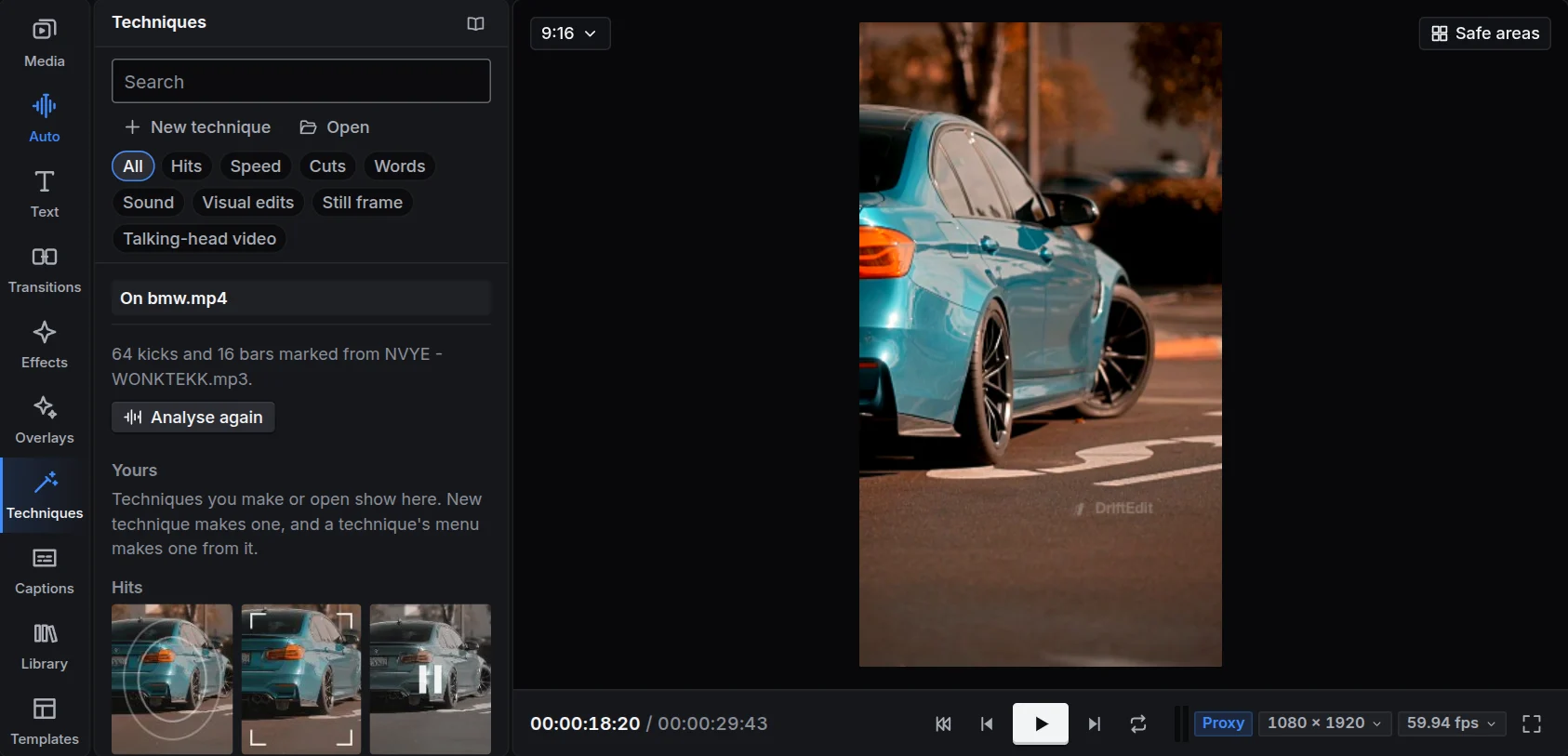
Editors repeat the same moves: a zoom on the kick, a punch-in on the beat, a freeze on the hit. The Techniques panel does each one in a single press on the selected clip, timed to the song, as ordinary keyframes, cuts and effects you can change afterwards. One undo takes a technique away.
How to use one
- Select a clip on the timeline. Move the playhead near the moment it should happen: techniques on a kick use the kick nearest the playhead.
- Click a technique in the Techniques panel. Its tile shows your clip as the move will treat it.
- A tile that does not fit what you selected is dimmed; click it and it says why (a title is needed, or the song's beats).
Right-click a technique for How it works: what it does, when to use it, what to avoid and what to check afterwards. Right-click a clip on the timeline to apply techniques from there too.
A technique that takes a while (finding the person for Blur the background, a photo moved in depth, a loop, a followed point, the voices cleaned, a still frame) shows its progress on its clip and in the timeline's toolbar. Press it there for the list of what is running: Stop beside one ends it, and nothing it was making is applied. Smoothing a slowed clip in the background, which it needs to play smoothly, runs to the end.
The techniques
| Group | Technique | What it does |
|---|---|---|
| Hits | Impact on the kick | A quick zoom on a kick that settles back, so the hit is seen as well as heard. |
| Punch in | A cut to a closer view of the same shot on the beat. | |
| Freeze on the hit | A closer view of the frame on the kick held for 0.4 s, then playback resumes. | |
| Lens hit | The picture bent hard as a wide lens bends it, settling slowly to nothing over the clip. | |
| Speed | Velocity on the beat | Slow on each kick, fast between them: a velocity edit. |
| Rewind onto the beat | The clip plays backwards with a zoom out, ending on a kick. | |
| Make it loop | The clip ends on a frame that looks and moves like its first, so it loops without a seam. | |
| Smooth motion | Slow motion that stays fluid: a model draws the frames between the footage's own. | |
| Cuts | Cut on the beat | A long shot cut on every bar, alternating wide and close. |
| Wipe with the movement | The next shot wipes in the way the last one was moving. | |
| Words | Words on the beat | A title's words appear one at a time, each on a kick. |
| Sound | Riser into the drop | A riser over the four seconds before the drop, a boom on it. |
| Sound leads in | The sound starts half a second before the picture (a J-cut). | |
| Sound carries on | The last shot's sound plays on into this one (an L-cut). | |
| Split into stems | Vocals, drums, bass and the rest, each on its own track. | |
| Visual edits | Follow what moves | A title or sticker tracked to the subject under it, frame by frame. |
| Move in depth | A photo pushed into, near things moving against far ones. | |
| Blur the background | The person kept sharp, the background blurred. |
Still frames
A still frame holds one frame of a clip, cuts its subject out (a car, a person, a drawn character: whatever stands out), and makes the subject and the background move apart on the beat. Editors put it on the beats before a drop.
- Select a video clip and move the playhead to the frame you want.
- Click a still frame technique, under Still frame.
- The first time, the subject model downloads (98 MB, once). Then the frame is read, the subject cut out, and the still placed: by default the two beats before the clip.
The still is two pictures from your clip, kept in the bin: the subject on transparency, and the background with the subject's place filled in, so the subject can move without leaving a hole. They sit on two tracks, grouped. Press another still frame technique while the still is selected to add its moves.
| Move | What it does |
|---|---|
| Rise in | The subject rises from below and lands on the beat with an impact. |
| Glow | A coloured glow round the subject swells on every beat. |
| Shake on the beat | The subject shakes on each beat while the background holds still. |
| From black | The subject starts as a black silhouette and comes up into its colours. |
| Slide with a trail | The subject slides in, a trail of copies behind it. |
| Sparkling outline | A bright outline round the subject that glitters. |
| Colour change | The subject's colours change on each beat. |
| Shaking shadow | The subject's shape again behind it, in one colour, sharp and jumping about. |
| Lens warp | The background bent hard behind the subject, settling to nothing. |
| Zoom | A slow push in, or a punch on the landing beat; on the background, it gives depth. |
Built-in combinations: Drop intro (rise, glow, shaking shadow), Reveal (from black, slide), Aura (glow, glitter, a light shake), Lens drop (the subject rises as the background bends) and Parallax (the background pushes in and trembles behind a glowing subject).
Talking-head video
For someone talking to the camera:
- Edit a talk does it all at once: cleans the voice, removes the pauses, cuts to a closer framing at each jump cut, writes the captions and lowers the music. To choose which pauses go, use Remove pauses on its own.
- Clean up the voice: less rumble and room hiss, even levels, the loudness set for short videos.
- Remove pauses: silences longer than 0.7 s between words are shown on the timeline first, each kept or removed as you choose, with a breath left on each side. Captions move with the words.
- Lower the music under speech: the music drops by 12 dB under each phrase.
- B-roll on the words: where footage in your bin shows what is said, it is cut in over the speaker for that phrase, the voice continuing underneath.
Techniques of your own
Every technique with settings can be made your own, and you can build a new one from scratch.
- Make your own: right-click a technique and change its settings: how far Impact zooms and how quickly it settles, how long Freeze holds, how slow and fast Velocity goes. For a still frame: its length in beats, where it goes, how dark and soft the background is, and its moves, in two lists, one for the Subject and one for the Background.
- New technique builds one from steps. Each step is a When (the kick by the playhead, every kick, every bar, the drop, the clip's start or its end) and a What: a zoom, a move, a turn or the opacity pulsing to a value and back, any effect's setting pulsing, the speed slowed or rushed around the hit, or a cut there. Steps add up: a zoom punch, a white flash and a shake on every kick, for example.
Apply to the selected clip shows it on your clip; pressed again, it replaces what it put there. Save keeps it under Yours, Export saves a .drifttechnique file to share, and Open brings one in. Your techniques travel with the projects that use them and, signed in, to your other devices.