Manual · Chapter 8
Effects, looks and VFX
Applying and adjusting effects, grading with looks, wheels, curves and LUTs, placing VFX, and making effects of your own.
The Effects panel holds every effect in DriftEdit, from one-tap looks to colour tools, blurs, glitches, distortions and VFX drawn in 3D. Each tile previews the effect on your selected clip, so you see what it does before applying it.
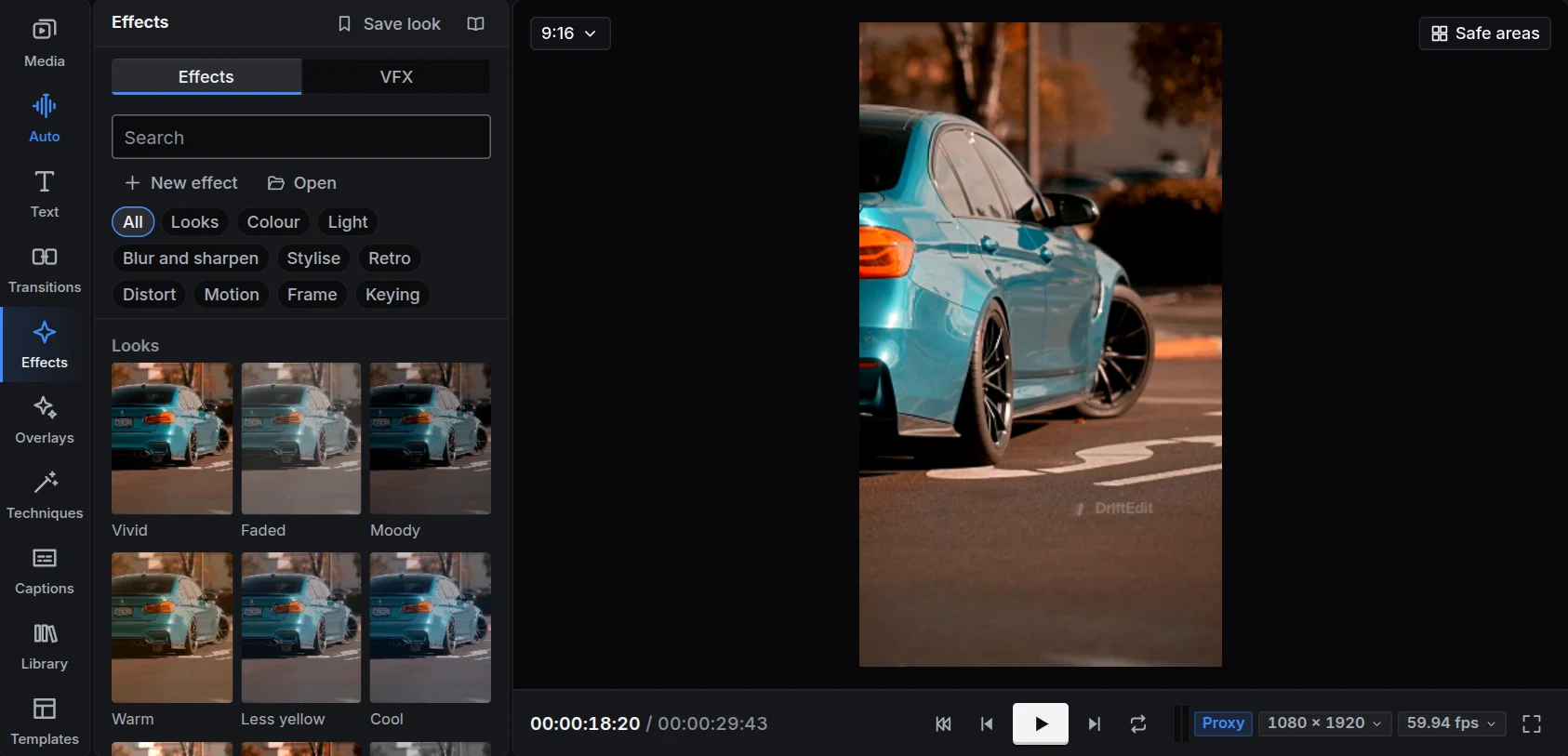
Applying an effect
- Select one or more clips and click an effect, or
- drag an effect onto a clip on the timeline, or
- drag it onto an empty stretch of a track: it becomes an effect clip that applies to everything under it, for exactly as long as the clip lasts.
The effect appears in the clip's Adjust tab in the inspector, with its settings. Each setting can be keyed (see Keyframes). Effects are applied in order from top to bottom; switch one off to compare the picture with and without it, or remove it.
Remove all effects in a clip's menu clears them in one step.
Finding one
The groups along the top of the panel show one group at a time: Looks, Colour, Light, Blur and sharpen, Stylise, Retro, Distort, Motion, Frame and Keying. VFX has a tab of its own. The search box looks through every group.
The chapter Reference lists every effect with what it does.
Colour and grading
- Looks are a complete grade in one tap: film, teal and orange, black and white, vintage and many more.
- Colour has exposure, contrast, highlights, shadows, saturation, temperature and tint. Colour by range changes eight hues on their own, such as a yellow cast or the blue of a sky.
- Colour wheels: lift, gamma and gain, each a hue and an amount, with a brightness under each. Drag the dot towards a colour to tint the shadows, the midtones or the highlights.
- Curves: master, red, green and blue on one graph. Click to add a point, drag it to bend the curve. Lifting the middle brightens the picture; an S shape adds contrast.
- LUT: import a
.cubefile (the kind colourists and cameras use). It goes into the project itself, so it saves, undoes and travels with project files. Strength mixes it with the original.
Film bars
Letterbox (in Frame) adds bars as a film is framed: at the top and bottom, the sides, or all around (Where), in any Colour, with a Bar size, an Opacity and a Softness. Its presets: Cinema bars, Letterbox, Pillarbox (4:3 in a 16:9 frame), Film frame, White bars and Soft bars. Drag it onto an empty stretch of a track above your clips, so the bars frame the whole picture; key Bar size to slide them in.
VFX
The VFX tab has effects drawn in 3D by DriftEngine over your clip: Fire, Smoke, Embers, Sparks, Electric arcs, Lightning strike, Coloured powder, Confetti burst, Snow, Rain, Magic dust and Shockwave ring, plus versions in other colours.
- Apply a VFX to a clip, or drag it onto an empty stretch of a track.
- Drag its centre in the viewer to place it: where the fire burns, where the lightning strikes.
- In the Adjust tab, set its size, amount, speed, colours, wind or direction, and rhythm. Every setting can be keyed.
The same frame is drawn in the preview and the export, every time.
Effects of your own
New effect in the Effects panel opens the creator:
- Recipe: a stack of effects from the catalogue, each with its settings, saved as one effect.
- Code: write the effect in GLSL. It is checked on WebGL 2 and WebGPU as you type; an error names its line, and the effect's settings become a form.
A preview on the selected clip shows it as you work. Save keeps it under Yours, Save as new makes a copy, Export saves a .drifteffect file to share, and Open brings one in. Code from someone else's file runs only after you allow it on your device. Signed in, your effects follow you to your other devices.
Presets of your own
Set up a clip's look the way you like, then save it as a preset: it appears under Yours, ready for any clip. When you change a preset, Update the clips using it takes the change to every clip that has it.