Manual · Chapter 1
Welcome to DriftEdit
What DriftEdit is, what you need to use it, what is free, and how this manual is organised.
DriftEdit is a video editor that runs in your web browser. There is nothing to install: open studio.driftedit.app and the whole editor is there, on a computer or a phone.
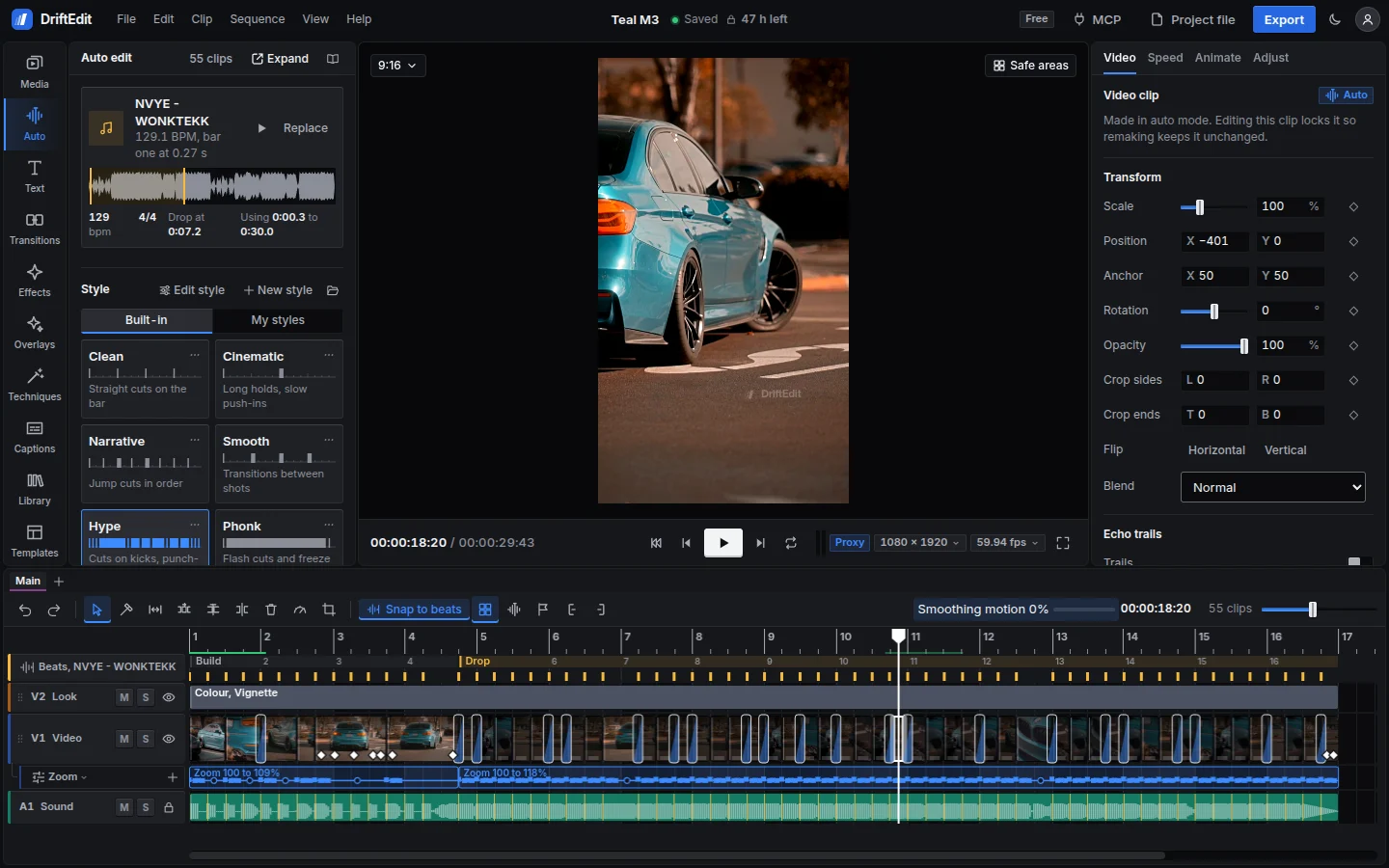
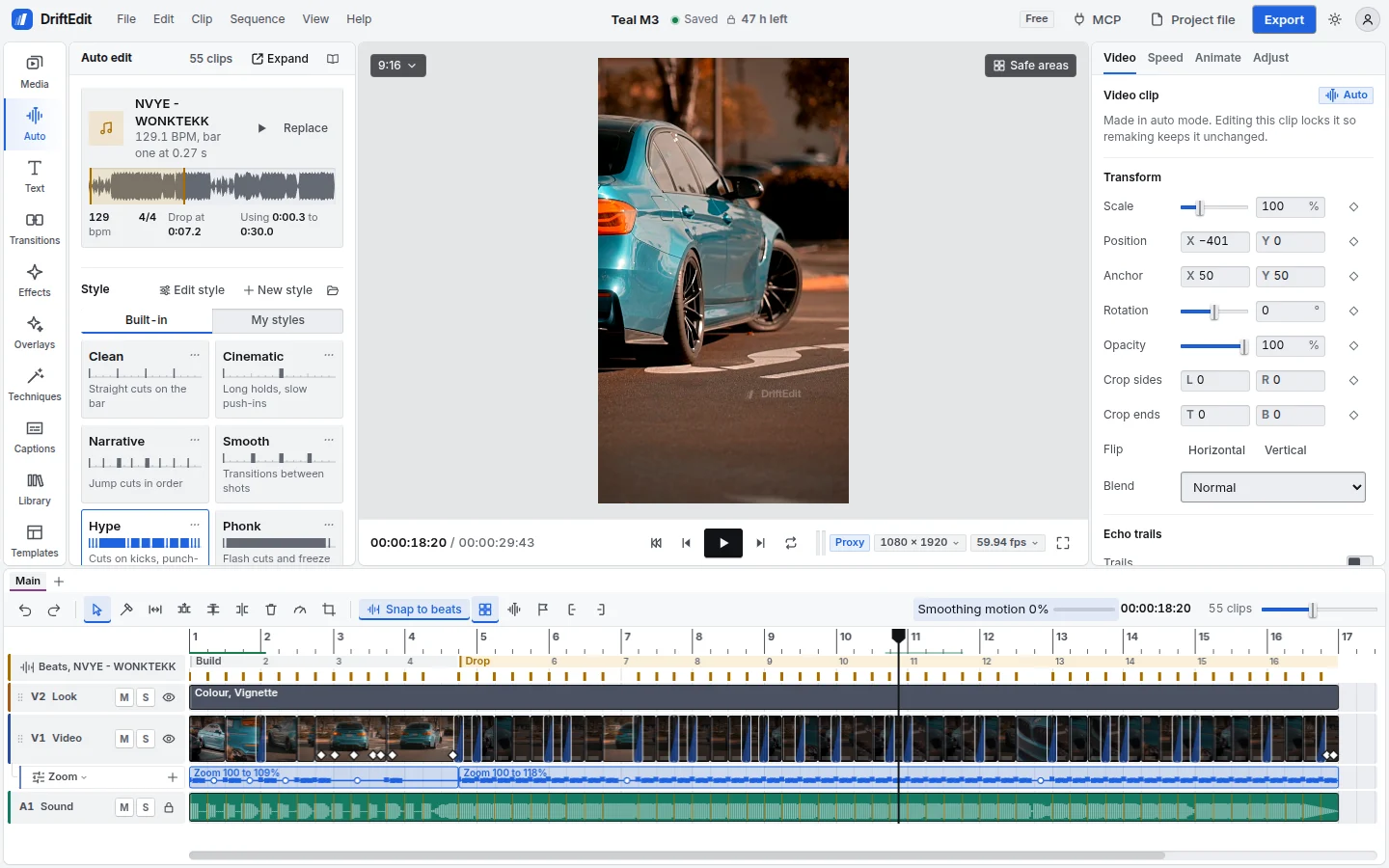
It does two things at once. It is a full timeline editor, the kind professionals use, with tracks, keyframes, effects, transitions, titles, captions, sound and export up to 4K. And it has auto mode, which listens to a song, finds its beat, its kicks and its drop, and cuts your own clips and photos to it in seconds. Whatever auto mode makes is an ordinary edit on the timeline, so you can change every part of it by hand.
What you need
- A recent browser. Chrome and Edge, on a computer or on Android, are tested on every release. Safari and Firefox work for most things and are still being tested device by device; where a feature needs something a browser lacks, the editor says so.
- A computer or a phone. A computer with a graphics card is faster, because DriftEdit draws your video on the graphics card through WebGPU (or WebGL 2 where WebGPU is not available). A phone works too, with a layout made for touch.
- Your own footage and music. Videos, photos and songs from your device. DriftEdit also has a Library of sound effects and beats made in code, free to use in anything you export.
You do not need an account. Editing, the AI tools and export all work without signing in.
As an app
DriftEdit installs like an app, with its own window and icon: choose Help, Install as an app, or the install button in the browser's address bar (Chrome and Edge, on a computer or on Android). On an iPhone or iPad, tap Share, then Add to Home Screen. It is the same studio, updated with every release, your projects where they were.
Your files stay with you
Everything happens in the browser tab, on your own device. Your videos are decoded there, the song is analysed there, the AI models run there, and the finished video is encoded there and saved where you choose. Your footage, photos and songs are never uploaded. (An AI agent you connect from elsewhere sees what it asks for: the edit, and pictures of it. See Working with an AI agent.)
If you sign in, your projects (without their media), the styles, presets and techniques you make, and your settings follow you to your other devices. You can switch that off. The chapter Projects, files and your account explains it.
Free and Pro
| Free | Pro | |
|---|---|---|
| Every editing tool, effect, transition and AI model | Yes | Yes |
| Export size | Up to 1080p at 60 fps | Up to 4K at 120 fps |
| The DriftEdit mark on exports | A faint mark | None |
| Projects | Lock 48 hours after the last edit (they are kept, and Pro opens them) | Never lock |
| Perfect quality (AI) at export | Yes |
Pro is coming soon. Until then, the free plan has every editing feature, with the export limits and the project lock in the table.
How this manual is organised
The chapters go from your first minutes to the expert tools. You can read them in order, or jump to the one you need from the contents.
- Start here: this page, Your first video, The studio at a glance and Importing and the Media bin. If you have never edited a video, read these four first.
- Everyday editing: one chapter for each part of the editor, from auto mode and the timeline to text, sound and export.
- Going further: keyframes and speed, effects you make yourself, techniques, the AI models, AI agents, workflows step by step, troubleshooting, and the complete reference of every style, effect and preset.
In the steps, names in bold are what you will see in the editor: its buttons, menus and panels. Keys look like CtrlZ; on a Mac, use Cmd where the manual says Ctrl.