Manual · Chapter 14
Templates
Ready edits with slots for your own clips and words, and templates of your own made from any edit.
A template is an edit with its cuts, transitions, effects and words already made, and slots where your own clips and words go. It is the quickest way to a polished video in a format you like.
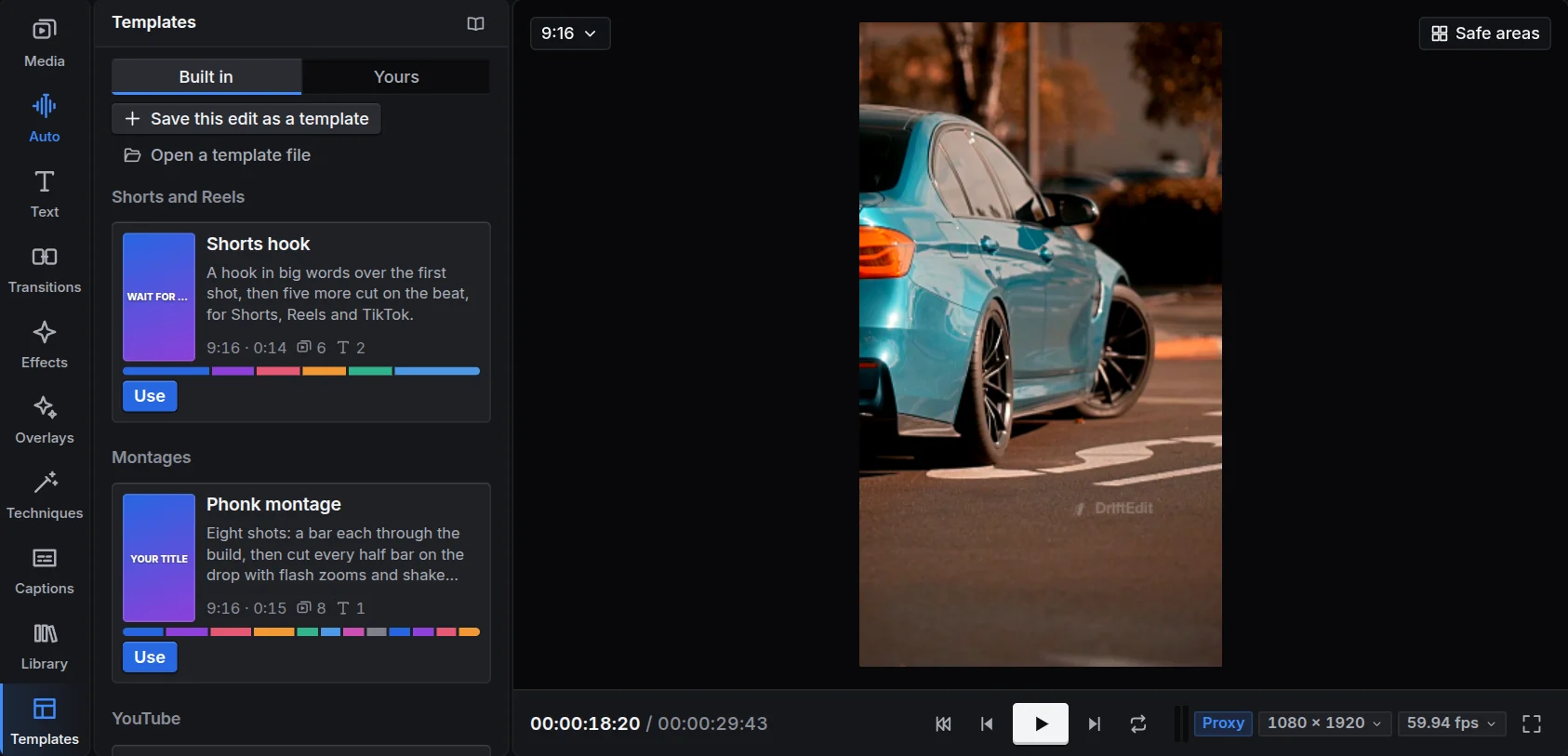
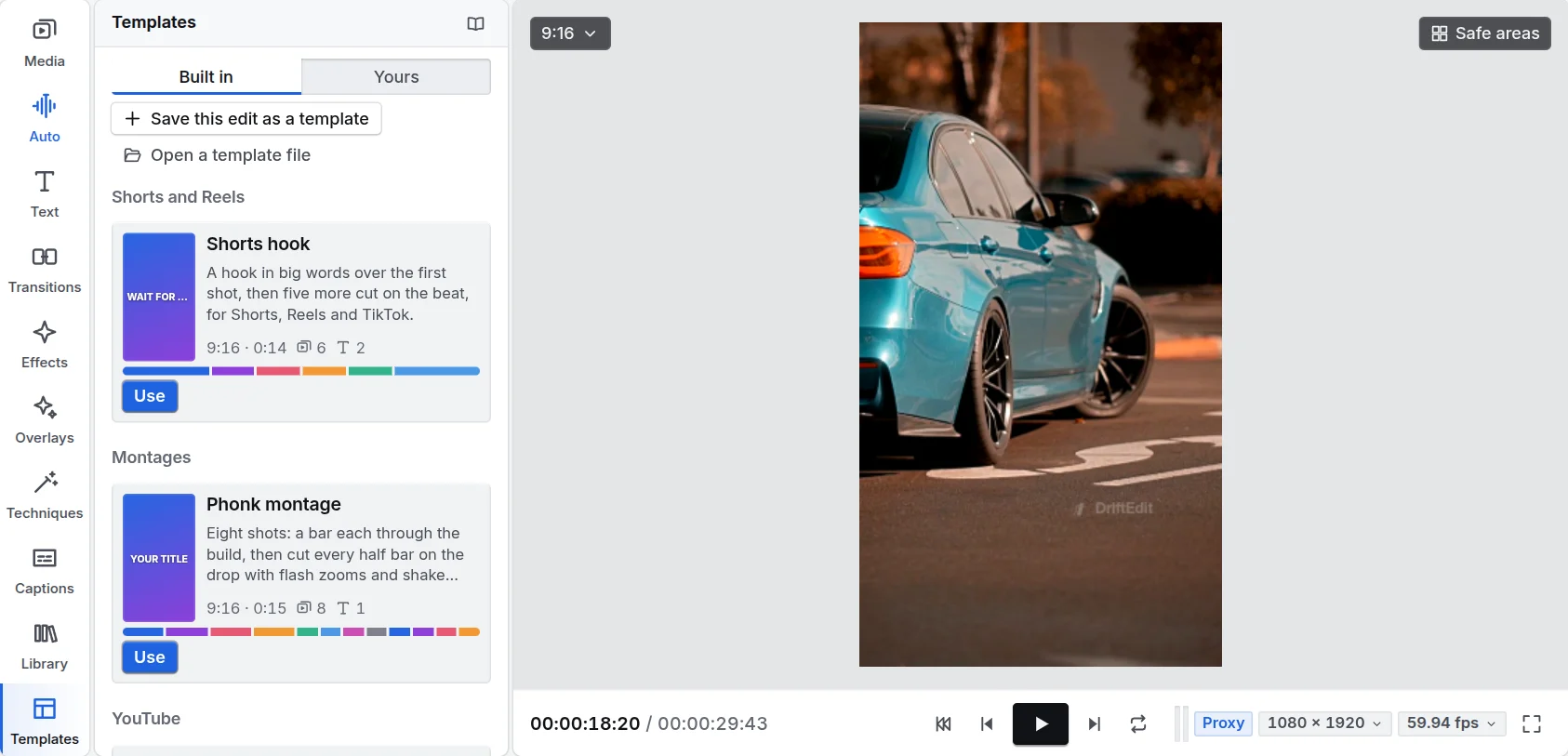
Using a template
- Open Templates on the left. Templates are grouped by kind: Shorts and Reels, Montages, YouTube, Social, Promos and Words.
- Each card says how many shots it needs and how many words to write. Press Use.
- Choose what fills each slot: a clip or photo from your bin for each shot, your own words for each text. A built-in template's song is a beat from the Library; choose your own song instead if you like. Add files imports more.
- Name the new sequence and press Make. The template opens as a new sequence of your project.
A slot you leave empty stays a coloured placeholder: drop a clip from the bin on it later to fill it.
Making a template of your own
Any edit can become a template:
- Open the edit and press Save this edit as a template.
- Give it a Name, say What it is for, and choose its Kind.
- Under Slots, choose which clips become slots for whoever uses it. Everything else stays as you made it; a file it still plays, such as a logo or a song, goes inside the template.
- Save keeps it under Yours; Save as a file saves a
.drifttemplateto share.
Open a template file brings in one that someone shared. Signed in, your templates follow you to your other devices, without the files they carry.