Manual · Chapter 2
Your first video
From nothing to a finished video cut to the beat, in about five minutes, even if you have never edited before.
This chapter makes a short video from your own clips and a song, with auto mode, then changes a few things by hand and exports it. You need a few video clips or photos and a song on your device. If you have no song, the Library has beats you can use.
1. Open the studio
Go to studio.driftedit.app in Chrome or Edge. On your first visit it opens on an empty project, ready to edit; later it reopens your last one, and File, New project starts another. There is nothing to sign up for.
2. Bring in your clips and your song
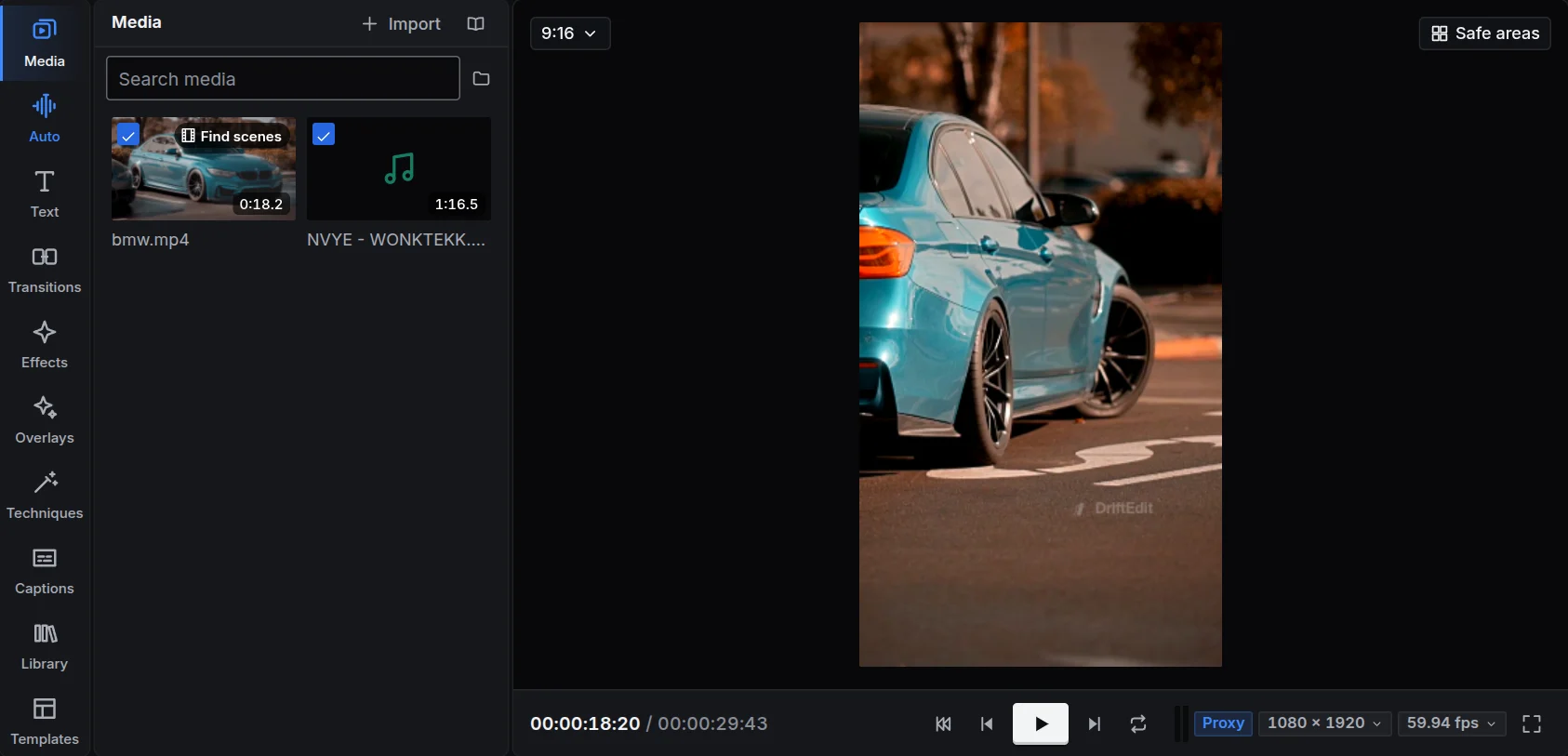
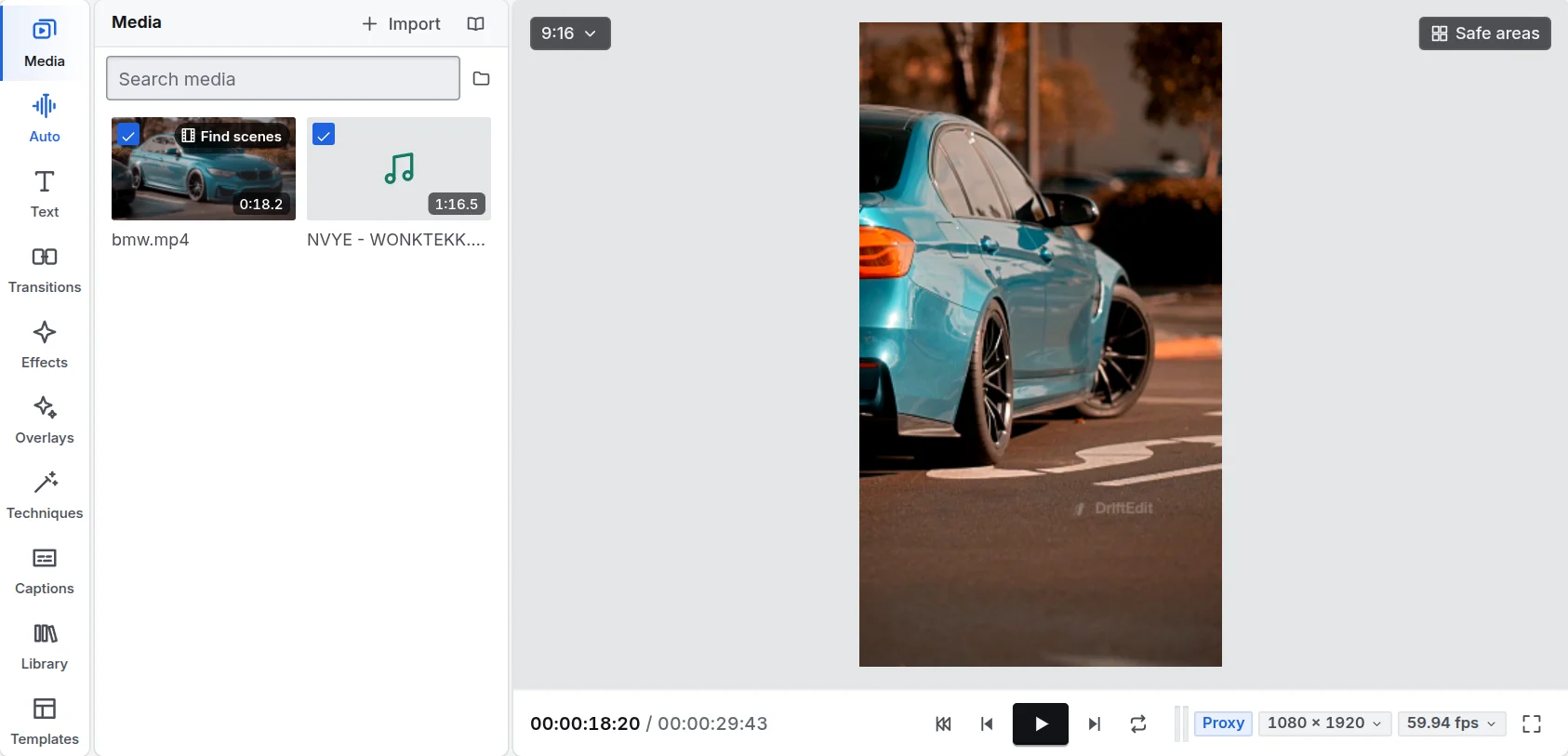
Press Import in the Media panel on the left, and choose your clips, photos and song. You can also drag the files from a folder and drop them anywhere on the studio.
Each file appears as a tile in the Media panel. A video shows a moving preview when you hover over it; a song shows its waveform. The files stay on your device: importing only lets the browser read them.
3. Let auto mode make the edit
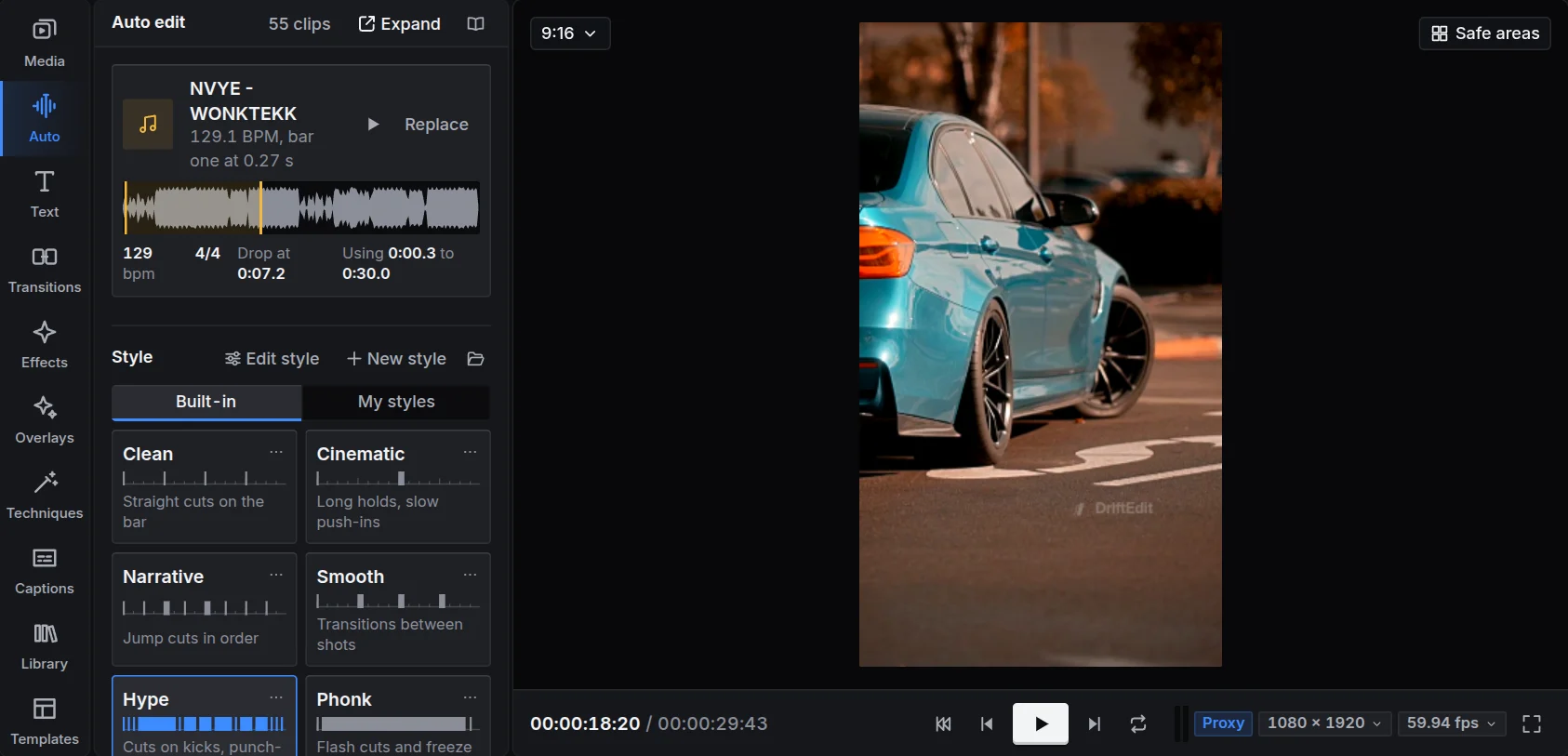
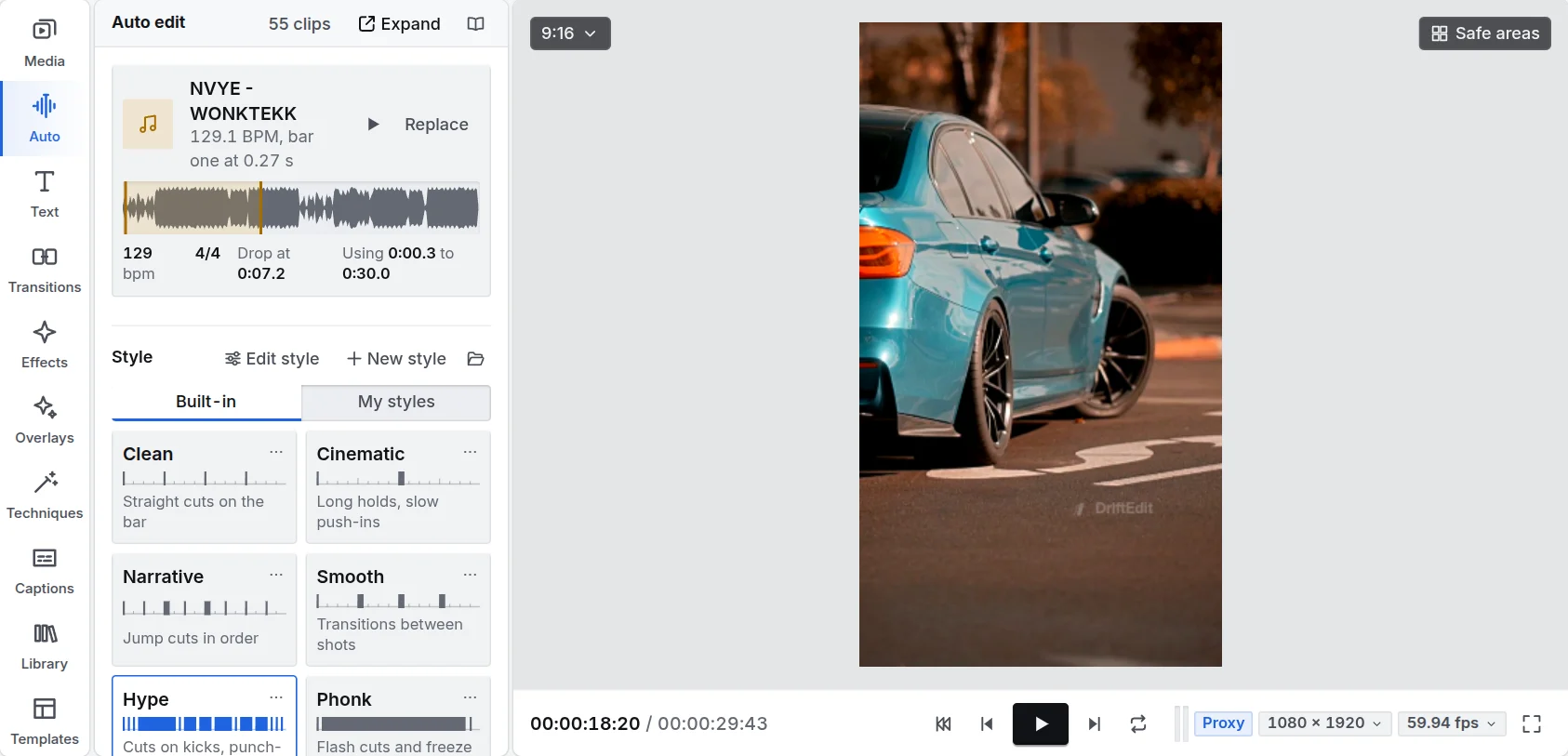
Open Auto on the left. DriftEdit has already found your song and your footage.
- Under Song, check that your song is chosen. Press Listen to hear the part of it the edit will use.
- Under Style, choose how the edit should feel. Hype cuts fast on every kick; Cinematic holds shots longer with slow push-ins; Clean cuts on the bar, with slow push-ins and no effects. The chapter Auto mode describes all nine.
- Under Length, choose how long the video should be, from 10 to 60 seconds.
- Press Make the edit.
DriftEdit reads the song (its tempo, its bars, every kick and the drop), looks through your footage for sharp, moving moments, and places the best of them on the beats. A bar shows what it is doing. After a few seconds, the edit is on the timeline.
4. Watch it
Press Space to play and pause, or the play button under the viewer. Click anywhere on the ruler above the timeline to jump there.
Not quite right? Press Another take: the same song and style, cut another way. Or choose another style and press Make the edit again.
5. Change something by hand
Everything auto mode made is an ordinary clip on the timeline. Try one of these:
- Swap a shot. Select the shot and press Delete, drag a better clip from the Media panel into the gap, and trim it to fit.
- Trim a shot. Drag the left or right edge of a clip to make it shorter or longer.
- Delete a shot. Click a clip and press Delete.
- Add a title. Open Text on the left and click a style: a title in it appears at the playhead. Or drag a style onto the timeline where you want it. Type your words in the inspector on the right, or double-click the title in the viewer and type there.
6. Export it
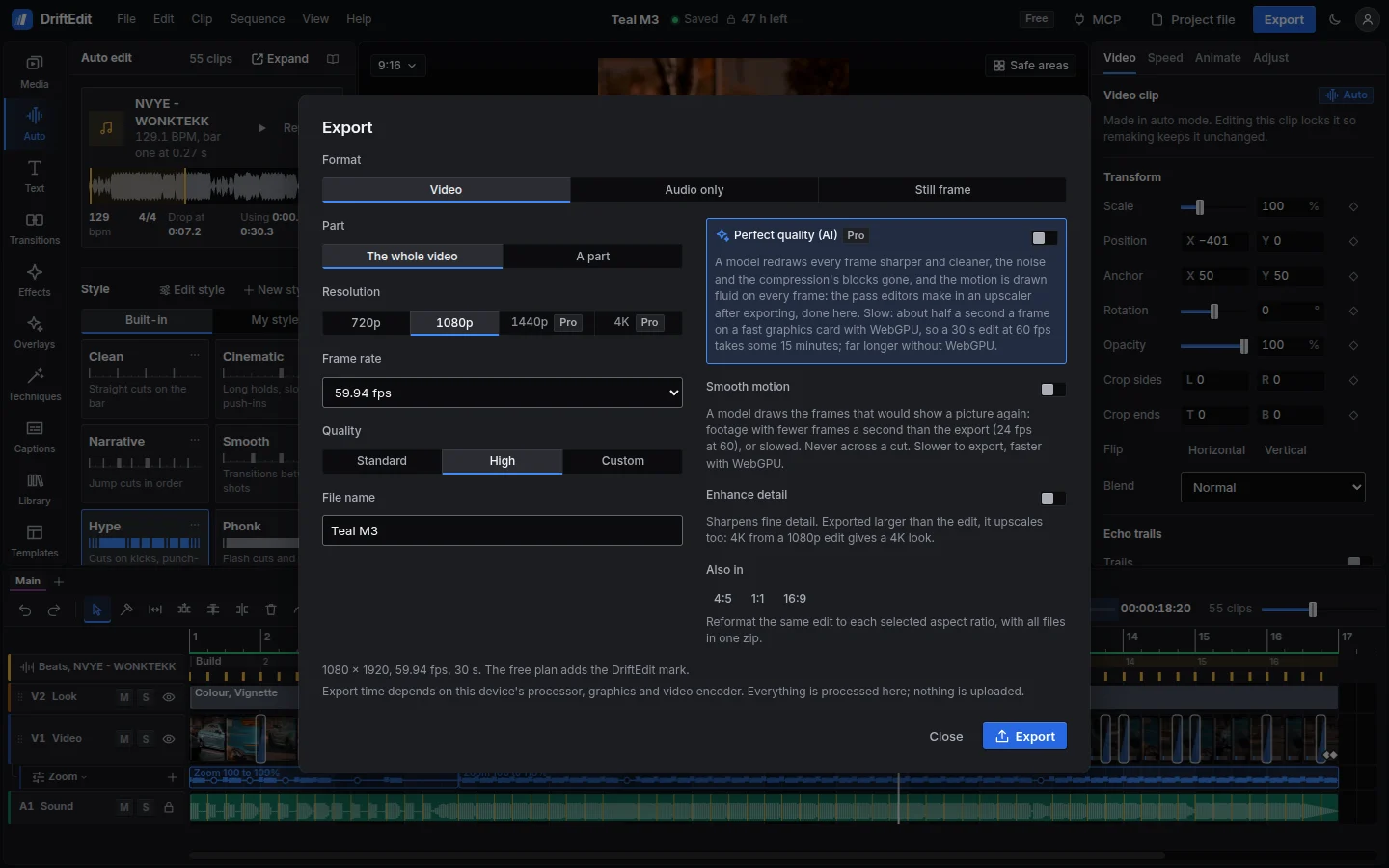
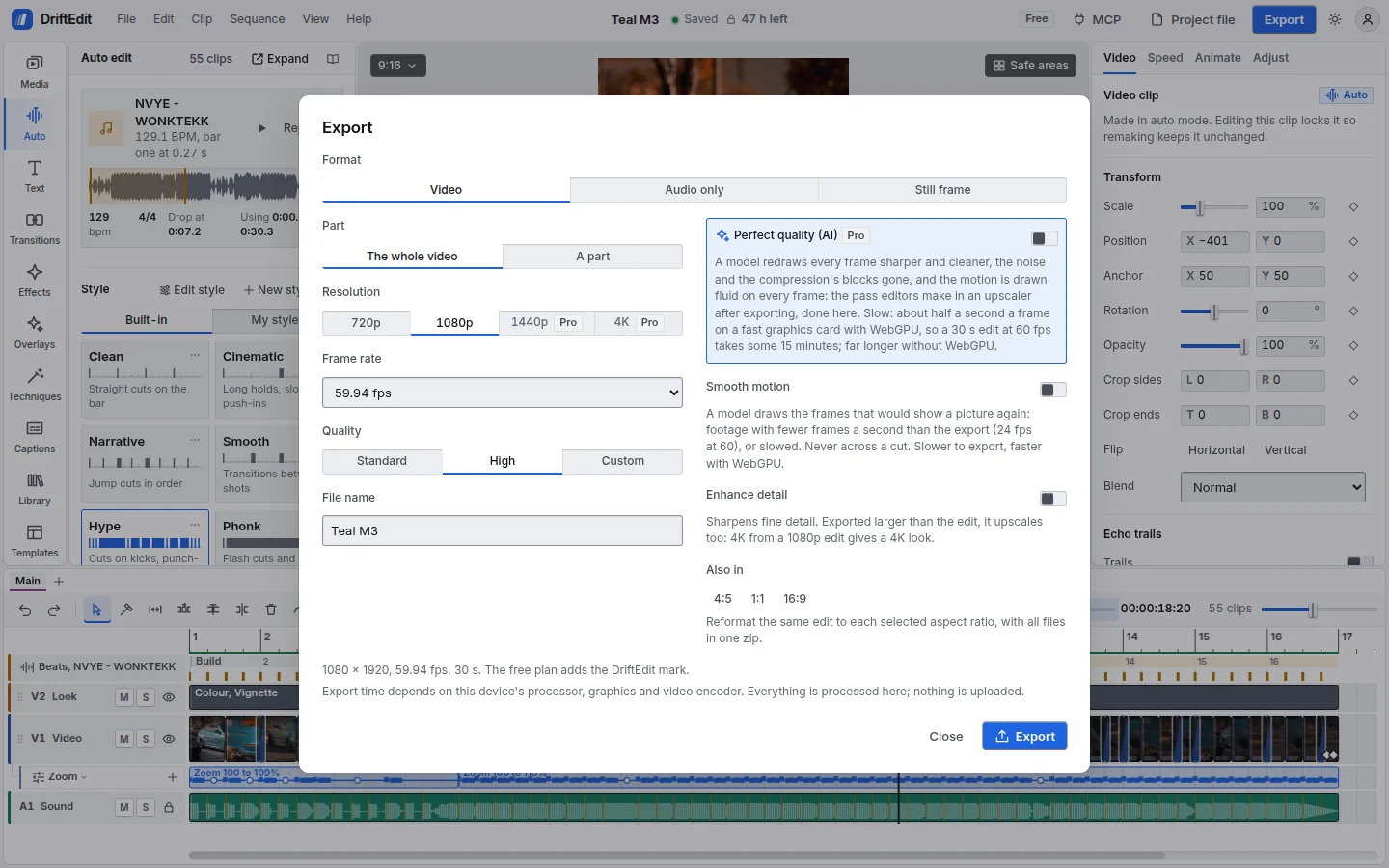
Press Export at the top right.
- Choose the Resolution (1080p is right for most social media) and the Frame rate.
- Check the File name.
- Press the export button. The video is made in the browser tab; a bar shows the frames as they are done. Keep the tab open until it finishes.
The finished MP4 is saved to your device, ready to post.
What next
- Learn your way around in The studio at a glance.
- Make the edit your own with effects, transitions and text.
- Follow a complete recipe in Workflows: a phonk car edit, a travel montage, a talking video for YouTube.