Manual · Chapter 5
Auto mode
How auto mode reads a song and your footage, every style, every setting, and how to make a style your own.
Auto mode makes an edit for you: you give it a song and some footage, it cuts the footage to the song. It is the fastest way to a music edit, and a good start for any video: what it makes is an ordinary edit you can change in every detail.
What it reads
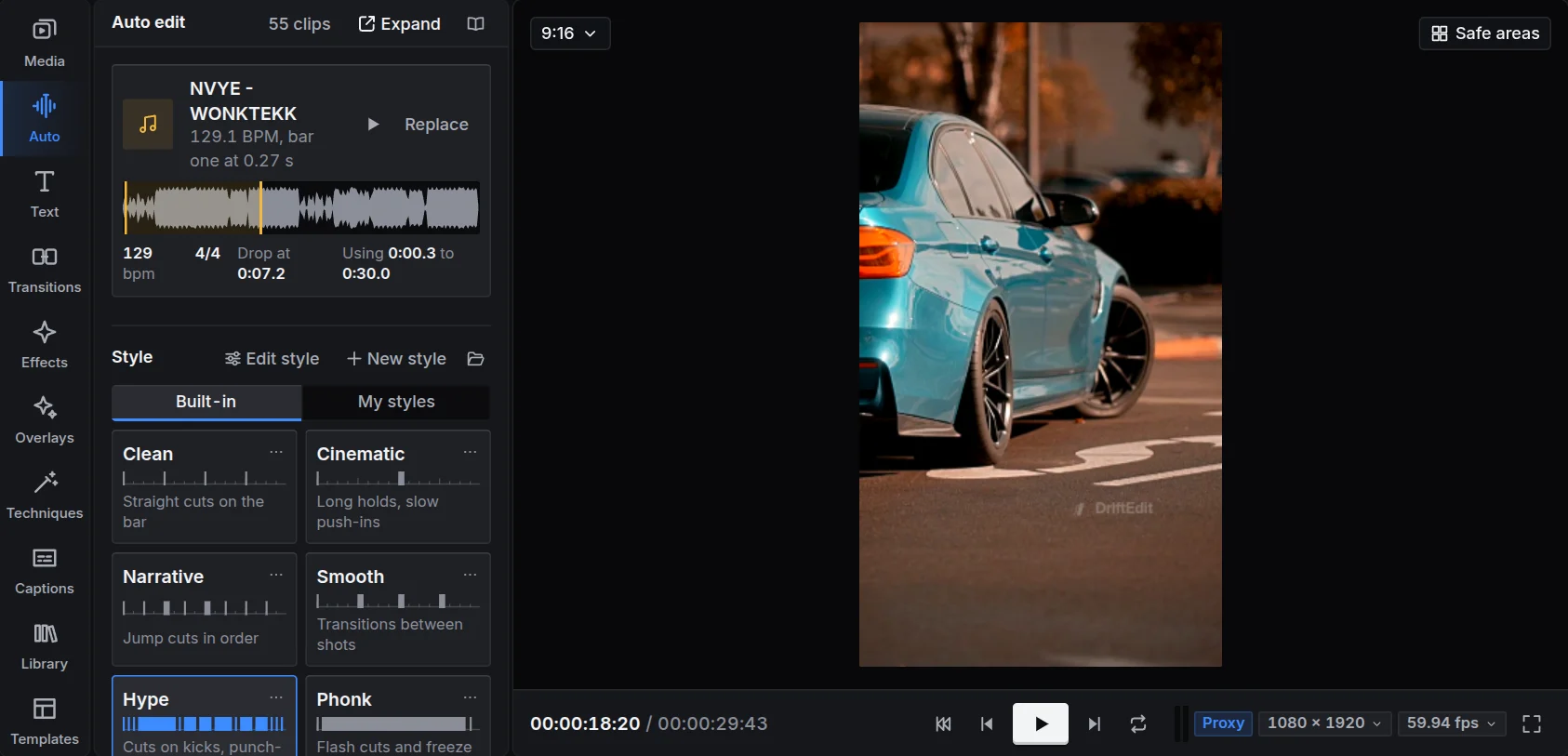
The song. DriftEdit finds its tempo, where bar one falls, its sections (intro, build, drop, bridge, break, outro), every kick at the moment it hits, and the drop. It cuts on the kicks the song actually has, not on a grid, and it saves your strongest footage for the drop.
The footage. Each clip is looked at four times a second for sharpness, movement and exposure, and photos are looked at once. The sharpest, most active moments go where the music lands. A vertical edit made from wide footage keeps the subject in the frame as it moves. The scene cuts inside a video are found too, so a shot does not show half of one scene and half of the next off the beat (Chaos aside, which wants exactly that).
All of it happens on your device, and what was read is kept with each file, so a second edit from the same song starts at once.
Making an edit
- Song: your song is chosen if you imported one. To use a beat instead, press Take a beat from the Library.
- Listen plays the part of the song the edit will use. Part of the song chooses it: Around the drop, From the start, or a stretch you drag on the song's waveform.
- Style: how it cuts and what it adds. The nine styles are below.
- Length: from 10 to 60 seconds. Aspect: 9:16 for phone apps, 4:5, 1:1 or 16:9.
- Intensity: Subtle, Balanced or Energetic sets how far the picture bounces and how often effects and transitions come.
- Press Make the edit.
A bar shows each stage: reading the song, finding the kicks and the drop, reading the footage, cutting. When it is done, a short report says what it did: the kicks it cut on, where the drop is, what it applied.
The ten styles
| Style | What it does |
|---|---|
| Clean | Straight cuts on the bar with slow push-ins, the footage left free of effects, a fade to black at the end. |
| Cinematic | Holds shots across several bars with slow push-ins, slower in calm passages, long dissolves, a film grade with grain. |
| Narrative | Jump cuts through your footage in order, at least half a second skipped at each cut, so the story keeps moving. |
| Smooth | Every cut flows through a dissolve, a zoom, a blur, a slide or a light leak. |
| Hype | Cuts on every kick of the drop, a bounce on each cut, flash zooms and whip pans, punch-ins on new sections. |
| Phonk | For phonk and montagem: flash zooms and shake flashes on every cut of the drop, glitch flashes, negative flips, black and white passages, ghost landings and blinks on the beat, a fade in, a freeze into the drop, a dark grade. |
| Anime | For anime and character edits: cuts on the kicks from the first bar, every cut a shake flash, flash zoom or zoom blur, negative flips, black and white passages, ghost landings, blinks and negative boxes on the beat, an ending in black and white. |
| Velocity | Speed ramps on the drop: slow on each kick, a rush between them, flash zooms into the drop, a vivid grade. |
| Chaos | Cuts on every kick with glitch flashes, bursts of glitch, colour split and shake on the hits. |
| Reverse | Shots that play backwards and zoom as they do, rewinds on the beat, a rewind into the drop. |
Every style cuts in steady units of the beat for each part of the song (a bar in Clean's drop, a beat in Hype's), and every cut in the drop lands on a kick.
The moves
Phonk and Anime lay moves on their shots on the beat, as phonk and anime edits do; Hype, Chaos and Velocity use a few.
- Negative flips: the same shot flicks to its negative, mirrored, two to four times on the half beats.
- Black and white passages: a flash into the same shot in black and white, pulling back, and a flash back to colour, pushing in.
- Ghost and burned landings: a shot arrives with a bigger, fading copy of itself on top, or overexposed and settling.
- Blinks: the picture closes and opens like eyes before a flashing cut.
- Negative boxes: half the screen turns negative for a few frames, most often its left or right half, more rarely its top or bottom half, and sometimes the other half straight after. Which half is picked anew in every edit.
- Zooms: in a style with no bounce, each drop shot pushes in or pulls back, in turns.
- Opening and ending: a fade in from black pushing in that dissolves into the second shot, and an ending in black and white or through white.
Each move is ordinary effects on its clip (Negative, Ghost copy, Eye blink, Black and white), keyed, to change or remove. Every flash counts toward three a second at most, and with Flashes off the negatives, boxes, blinks and burns are left out (a flip only mirrors). In the style editor, Moves sets how often each happens, the opening and the ending.
Trying again
- Another take: the same song and style, cut another way.
- Versions: four more takes side by side; pick the one you like.
- Remake around my changes: after you change shots by hand, auto mode cuts the rest again, and everything you changed stays exactly as it is.
- Remake from scratch: makes the edit again with the choices as they are now. What auto mode made goes, the shots you changed too; your own clips and locked tracks stay.
All settings
All settings opens every other choice, in sections:
- Opening text: words over the first seconds, in the style's typography.
- Sound effects: a boom on the drop, a riser before it, impacts on the drop's bars, swooshes on whip and zoom cuts.
- Only cuts: the style decides where the cuts go, and nothing else is added: no effects, zooms, transitions or sounds.
- Flashes: on by default and never more than three a second. Switch them off for viewers sensitive to flashing light: each flashing cut keeps its movement. Shake and glitch can each be left out too.
- Slow motion on beat cuts: in a drop cut on every beat, each shot plays at half speed or slower, so the movement hangs on the beat. Smooth slowed shots then draws the frames between the footage's own so they stay fluid.
- Ends where it starts: the last shot runs into the first, so the video loops without a seam.
- Cutting: Cuts on chooses phrases, bars, beats or kicks; Shot length sets the pace; Transitions sets how many.
Choosing the footage
The footage list in the Auto panel shows every clip and photo. Switch one off to leave it out. Press Choose parts on a video to pick only its best stretches: see Importing and the Media bin.
Styles of your own
Any style can be opened and changed. Press Edit style (or Edit on a style's card): the style editor shows what it cuts on, how long its shots are, its footage choices, transitions, hits, moves, look, text and sound, with a picture of how it cuts four bars of a drop.
- Changes go into the edit's own copy, so the built-in style stays as it was.
- Save to my styles keeps the style on your device, under your styles. Signed in, it follows you to your other devices.
- Export saves it as a
.driftstylefile, with its LUT and any transitions of your own it uses, to share. Open brings one in.